Image to 3D for Blender
Image to 3D for Blender: check the GLB, then import it
- Turn a photo into a GLB, then import it with File > Import > glTF 2.0.
- Drop the GLB below first: you get its size in Blender metres, its textures, and whether Blender 5.2 accepts it.
- Imported models look full of holes until you Merge by Distance. That is the file format, not the mesh.
Check a GLB before you import it into Blender
No GLB yet? Convert an image to a 3D model free and download the GLB, then check it here.
How to import an image to 3D model into Blender
A generated model arrives as one .glb file: mesh, UVs and textures together. Blender reads it with the glTF 2.0 importer that ships inside every version since 2.80, so the whole import is four moves.
- Download the GLB from your Sculptly result. It is free on every generation, with textures included.
- File > Import > glTF 2.0 (.glb/.gltf) in Blender, then pick the file. Leave the import options at their defaults for a first look.
- Press Numpad . to frame it and Z for Material Preview. Solid shading shows no textures, which is the most common reason a fresh import looks grey.
- Check the size in the N panel, Item tab. Generated models have no real-world scale: our three versions of one dog came in at 0.51 m, 0.99 m and 1.84 m tall.
What the importer does on its own, checked in Blender 5.2.2:
| glTF says | Blender does | You need to |
|---|---|---|
| Y axis is up | Converts to Z-up on import | Nothing. Do not rotate by hand. |
| Units are metres | Reads them as Blender metres, 1 to 1 | Rescale if the model is the wrong size for your scene |
| Textures are inside the file | Packs them into the .blend | Nothing, unless you want to unpack and edit them |
| Vertices split at UV seams | Keeps the split | Merge by Distance before any topology check |
| Requires an extension Blender lacks | Stops with an error naming the extension | Re-export without it; the check above catches this |
The last row comes from the importer's source, not the manual: Blender 5.2.2 manages 22 glTF extensions. One it does not manage is ignored if the file only uses it, and stops the import if the file marks it required.
Six generated GLBs, imported into Blender 5.2
One pet photo and one sign photo, each generated at all three Sculptly settings and imported into Blender 5.2.2 with default options on 25 September 2026. The pictures are Blender renders of the imported files, not our viewer.
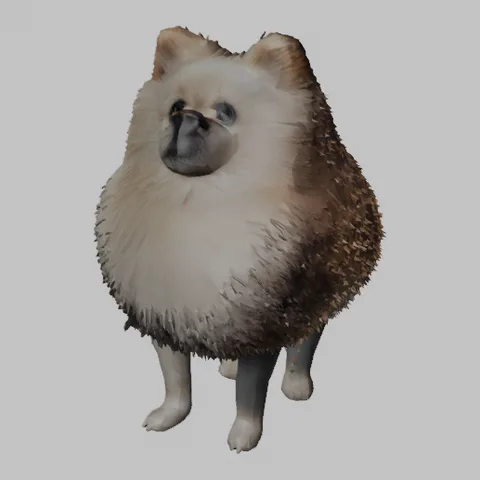
Pet, Standard6.4 MB · 0.676 × 0.728 × 0.985 m1 × 2048 px PNGNon-manifold edges: 41,054 on import, 0 after merge 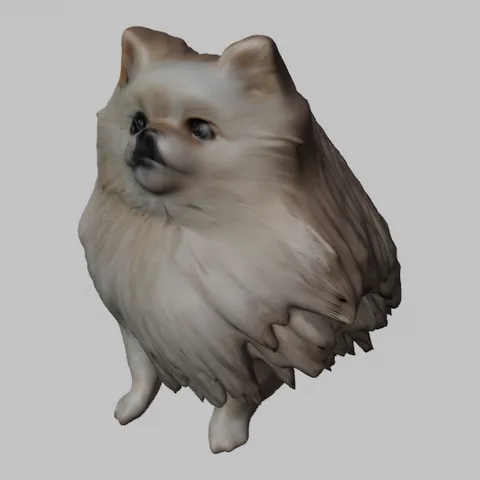
Pet, High Detail15.7 MB · 1.524 × 1.566 × 1.837 m3 × 2048 px PNG (colour, metal/rough, normal)Non-manifold edges: 18,394 on import, 43 after merge 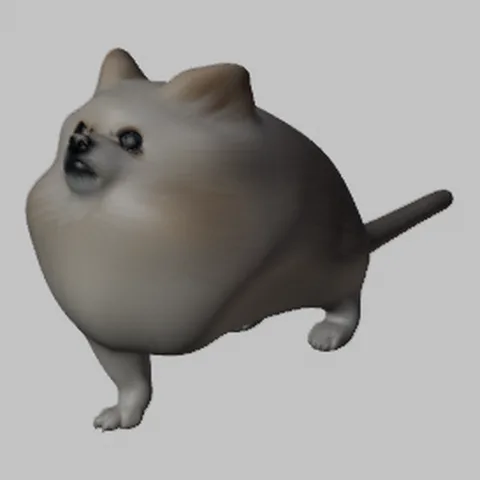
Pet, Ultra Detail28.3 MB · 0.335 × 1.134 × 0.509 m1 × 4096 px PNGNon-manifold edges: 27,066 on import, 0 after merge 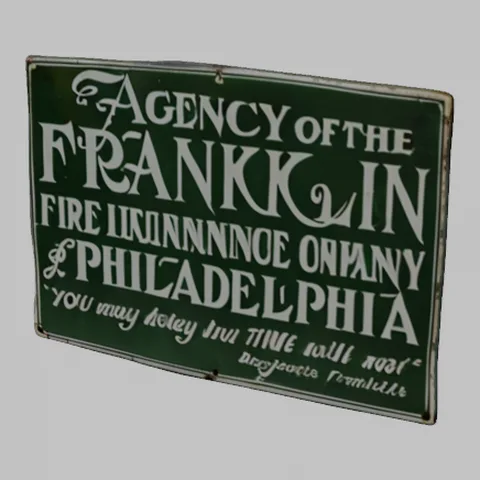
Sign, Standard5 MB · 0.989 × 0.029 × 0.7 m1 × 2048 px PNGNon-manifold edges: 1,540 on import, 0 after merge 
Sign, High Detail15.1 MB · 1.883 × 0.057 × 1.455 m3 × 2048 px PNG (colour, metal/rough, normal)Non-manifold edges: 14,571 on import, 3 after merge 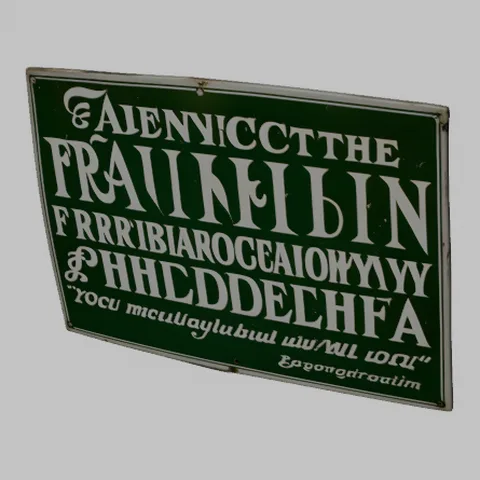
Sign, Ultra Detail33.8 MB · 0.995 × 0.154 × 0.701 m1 × 4096 px PNGNon-manifold edges: 34,114 on import, 0 after merge
Two things stand out. Every file looked broken straight after import, with thousands of open edges, and four of six were completely closed once the split vertices were merged. And High Detail, the setting that keeps faces and lettering best, is the one that still has real open edges afterwards: 43 on the dog, 3 on the sign. Fix those before you print, or leave them if the model is only for rendering.
Troubleshooting a GLB that looks wrong in Blender
| What you see | Why | Fix |
|---|---|---|
| Grey, no colour | Solid shading hides textures | Z > Material Preview. Still grey: check Base Color is linked in the Shading workspace. |
| Nothing visible after import | The model is far smaller or larger than the view | Numpad . frames the selection. Then set the size in the N panel. |
| Thousands of edges selected by Select All by Trait > Non Manifold | Vertices split at UV and normal seams | Edit Mode, select all, Mesh > Clean Up > Merge by Distance, then check again. |
| Import stops with "Extension ... is not available" | The file requires a glTF extension this Blender does not manage | Re-export without that extension, or use a newer Blender. |
| The object has a parent called world | Standard GLBs are written with a root node of that name | Select the mesh, Alt+P > Clear and Keep Transformation, then delete the empty. |
Headed for a printer rather than a render? Blender's STL export will carry any real holes with it. Run the file through STL file repair first, which caps open holes and tells you what it could not fix.
Questions about image to 3D for Blender
How do I import a GLB into Blender?
File > Import > glTF 2.0 (.glb/.gltf), then pick the file. The importer ships with Blender and is on by default, so there is nothing to install. It converts glTF Y-up to Blender Z-up for you and reads glTF metres as Blender metres, one to one. Textures inside the GLB are packed into the .blend, so the model keeps its colour even if you move the .glb afterwards.
Why is my imported GLB grey in Blender?
Usually because the viewport is in Solid shading, which does not draw image textures. Press Z and choose Material Preview, or switch to Rendered. If it is still grey there, open the Shading workspace and check that an image is linked to Base Color on the Principled BSDF. If the GLB check above says the file has no textures, it will be grey in every mode.
Why does Select Non-Manifold select thousands of edges on an imported GLB?
A GLB splits a vertex wherever its UVs or normals change, so a closed model arrives with open-looking seams. On our Standard Pomeranian that was 41,054 edges on import and 0 after Mesh > Clean Up > Merge by Distance. Run that first; what is still selected afterwards is a real problem.
Should I import GLB or OBJ into Blender?
GLB, unless you only need raw geometry. OBJ carries no PBR textures from a Sculptly export, so an OBJ import arrives untextured and you rebuild the shading by hand. GLB is free on every generation; OBJ is a paid unlock on the same generation.
Which Blender version do I need?
Any Blender from 2.80 onward has the glTF 2.0 importer built in. We tested this page against Blender 5.2.2 LTS, and the extension list the GLB check uses is copied from that version. Older versions manage fewer extensions, so a file that passes here can still fail on a much older Blender.
What does image to 3D for Blender not give me?
No rig, no animation, no UV layout planned for hand painting, and no guarantee of clean quad topology. The High Detail models even arrive with a few real open edges (43 on our dog). Treat the import as a detailed starting mesh that you retopologise, rig or repair in Blender.
Other routes into Blender and beyond
GLB viewer
Turn the model and check its textures without opening Blender.
STL file repair
Cap open holes and export .stl, .obj and .glb for printing.
OBJ to STL converter
Move geometry between OBJ and STL, both ways, in the browser.
Image to 3D for Unity
The same GLB, taken into a game engine instead.
Further reading: 4 pitfalls when importing an AI-generated GLB into Blender covers the Y-up rotation, scale and triangle-budget mistakes that come up most after an import like this one.