Free tool
STL File Repair
Free STL file repair that runs in your browser. Drop in an .stl or a .glb, and it finds the open holes in the mesh, caps each one, and gives you back .stl, .obj and .glb. Nothing is uploaded and no account is needed.
This fixes open holes only, meaning boundary edges used by a single triangle, capped with a flat patch shown in orange. It does not fix self-intersecting geometry, flipped normals, or disconnected mesh islands.
What STL file repair fixes, and what it leaves alone
A surface is watertight when every edge is shared by two triangles. An edge used by only one is a boundary: the rim of a hole. This tool collects those edges, walks them into closed loops, and caps each loop with a flat patch. That is the whole operation. It does not smooth, decimate, re-topologise or reorient anything, so a mesh that comes back unchanged really was already closed.
Why an STL needs welding before it can be repaired
An STL has no vertex list. Each triangle carries its own three corners, so two triangles meeting along an edge store that edge twice with no record that the copies are the same point. Fed straight into a hole finder, every edge in the file looks like a boundary and the whole model reads as one enormous hole. So identical positions are merged first, which restores the shared edges the format threw away. Checked against a known mesh before this shipped: a model exported to STL as a 5,862-vertex triangle soup welded back to 979 vertices and 1,954 triangles, matching the original exactly.
A repair, start to finish: the axe example
To show what a repair report means, we took the axe model from our own gallery, which is watertight, and deleted 120 of its 1,954 triangles in two places: a gash in the blade and the end of the handle. Then we ran the damaged file through this page. These are the real numbers it reported (run on 2026-09-23):
| Open holes found | 2 |
|---|---|
| Patch triangles added | 46 |
| Regions too complex to cap | 0 |
| Non-manifold edges | 0 |

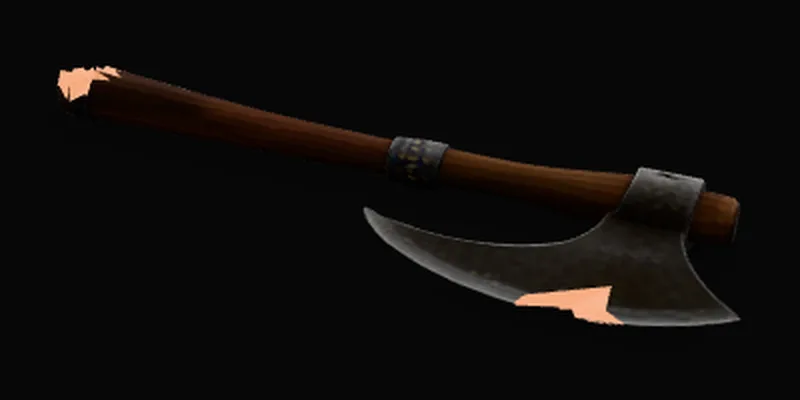
The two holes add up to 46 patch triangles, not the 120 that were removed. That is expected: the tool closes each hole with a flat cap across its rim, not by rebuilding the surface that was lost. On a small gash that is invisible once printed. On a large hole across a curved surface, the flat cap is the part to check before you slice.
Six models straight from a generator, repaired
The axe above was damaged on purpose. These six were not: one pet photo and one sign photo, each generated at Sculptly's three settings and run through this page unchanged on 25 September 2026.

Pet, Standard40,000 trianglesAlready watertight: nothing to cap 
Pet, High Detail93,330 triangles19 tangled rims, 11 non-manifold edges 
Pet, Ultra Detail500,000 trianglesAlready watertight: nothing to cap 
Sign, Standard40,000 trianglesAlready watertight: nothing to cap 
Sign, High Detail100,488 triangles1 non-manifold edge 
Sign, Ultra Detail500,000 trianglesAlready watertight: nothing to cap
Four of six were closed as generated. Both High Detail models were not, and none of their problems were simple holes: 19 tangled rims and 11 edges shared by three faces on the dog, 1 such edge on the sign. The tool counts those and leaves them, because a flat cap across a tangled rim would print as a wrong surface. If a High Detail model is headed for a printer, plan a pass in Blender or Meshmixer.
What it can and cannot fix, problem by problem
A slicer that rejects a model rarely says which of these it found. Use the report above to tell them apart, then pick the right fix.
| Problem | What you see | This tool | If it cannot fix it |
|---|---|---|---|
| Open holes | Missing faces; the slicer says the mesh is not closed or not watertight | Fixed: each simple hole is capped with a flat patch | - |
| Holes with a tangled rim | A hole whose edge crosses itself or branches | Counted as “regions too complex to cap” and left untouched | Fill by hand in Blender or Meshmixer |
| Non-manifold edges | An edge shared by three or more triangles; slicers often flag these as errors | Counted and reported, not changed | Delete and rebuild the faces around those edges |
| Self-intersections | Two surfaces pass through each other | Not detected | A boolean union or remesh in a modelling tool |
| Flipped normals | Parts render dark or inside-out; slicer fills them wrong | Not changed | Recalculate normals (Blender: Mesh > Normals) |
| Separate floating parts | Loose pieces that print as stray blobs | Not changed | Delete loose parts in your modelling tool or slicer |
Our own dragon sample (the “Try a sample” button) shows the second half of this table. It reports 0 open holes, 2 regions too complex to cap and 15 non-manifold edges. The tool leaves all of that alone and says so, rather than adding patches that would only look like a fix.
What your slicer's STL error is telling you
Slicers word these differently, and some try an automatic fix when you load the file and report how many errors they changed. Read the message as one of five problems:
| The slicer reports | Usually caused by | What to do |
|---|---|---|
| Open edges, holes, or "not watertight" | Missing faces: a scan that could not see a surface, or the unseen back of a single-image model | Caps each simple hole with a flat patch |
| Non-manifold edges | Three or more faces meeting on one edge, often where two parts were joined | Counts them; fix by deleting and rebuilding those faces |
| Inverted or flipped normals | Faces pointing inward, often from a mirror or a bad export | Not changed; recalculate normals in Blender (Mesh > Normals) |
| Intersecting or overlapping shells | Separate pieces pushed into each other instead of merged | Not detected; use a boolean union or a remesh |
| Several objects or loose parts | Stray fragments exported with the model | Not changed; delete loose parts in your modelling tool |
Only the first row is a hole, and it is the only one this STL repair tool changes. An automatic repair in a slicer is a best guess applied to the sliced copy; your STL file on disk still has the problem the next time you open it anywhere else.
How to check that an STL repair worked
- Run the repaired file through this page again. A second pass should find no holes left to cap. Any tangled rims or non-manifold edges it still reports are the ones no flat patch can fix.
- Check it in Blender. Import the .stl, enter Edit Mode and use Select > Select All by Trait > Non Manifold. On our Standard dog, repaired here and imported into Blender 5.2, that selected nothing: 19,978 vertices, 0 open edges, 0 non-manifold edges.
- Load it in your slicer and confirm the warning is gone before you print. If one remains, the slicer error table says which problem it is.
Do the Blender check on the repaired .stl, not on a .glb. A GLB splits vertices along texture seams, so the same closed dog showed 41,054 non-manifold edges when imported as a GLB and none after Mesh > Clean Up > Merge by Distance. The image to 3D for Blender page has the full numbers for all six models.
A practical repair sequence, from report to print
- Inspect the file and note what the receiving app reports.
- Convert the file only when the destination needs another format; conversion does not repair geometry.
- Repair open holes, then inspect the result before printing or running a boolean operation.
- Use a dedicated modelling application for self-intersections, flipped normals, or disconnected parts.
Do not convert an OBJ to STL just to start diagnosis. Format conversion changes how the same triangles are stored; it does not correct them. Inspect the source model, repair an actual topology issue, and convert only if the next application requires another format.
Keep the repair and production steps separate. Use a repair pass to make a simple hole visible and close it. Use a slicer to set scale and print settings. Use CAD or mesh-editing software when a part needs tolerances, draft angles, alignment pins, or shape-specific topology changes. Each step answers a different question.
Why use this STL repair tool
100% private
The file is repaired on your own device inside a Web Worker. This page has no upload endpoint, so your model never reaches a server.
Completely free
No account, no card, no credits, and no cap on how many files you repair.
Shows you the fix
Each patch goes in as a distinct orange material, so you can see at a glance which parts are new.
Takes STL or GLB
An STL stores each triangle independently, with no shared edges, so it has to be welded before holes even become findable. That happens automatically on the way in.
Real hole detection
Boundary edges, meaning edges used by exactly one triangle, are collected into loops and capped. The rest of the surface is left exactly as it arrived.
Three formats out
Every repair produces .stl for a slicer, .obj for Blender and most other tools, and .glb, with no separate conversion step.
Honest about limits
It caps open holes. Self-intersecting geometry, flipped normals and disconnected islands are out of scope, and the result says so.
Frequently asked questions about STL file repair
How does STL file repair work here?
It looks for boundary edges, meaning edges that belong to exactly one triangle. A closed surface has none; every one that exists is the rim of a hole. Those edges are walked into loops and each loop is capped with a flat patch. Nothing else about the mesh is altered.
Is my file uploaded anywhere?
No. The file is read straight from the picker into memory and handed to a Web Worker running in your own browser, which parses it, finds the holes, caps them and writes the three exports. There is no upload endpoint on this page to send it to, and no request goes out while any of that happens. The downloads are built from blobs already in the tab, so closing the tab is enough to discard everything. Nothing is stored, and there is no account for it to be stored against.
Can it repair an STL, or only a GLB?
Both. The file type is detected from the bytes rather than the name, so a renamed file still lands in the right parser. STL needs one extra step first: the format stores every triangle with its own copy of each corner, so identical corners are merged before anything can tell a real hole from an ordinary edge.
Why are the patches a different colour?
So you can see what changed. The patches are added as their own material, named "repair patch", in orange at slightly reduced opacity and marked double-sided so a cap is visible from both faces. Because it is a separate material rather than a recolour of your surface, you can select every patch in one click in Blender and delete, move or remodel them if the automatic cap is not the shape you wanted. Blending them invisibly into the original would look tidier and would hide the one thing you most need to check.
What does this not fix?
Self-intersecting geometry, flipped or inconsistent normals, and disconnected mesh islands are all out of scope. A hole whose rim cannot be resolved into a simple loop is reported as skipped. Non-manifold edges are counted and named, then left alone.
My mesh came back unchanged.
Then it was already watertight: every edge in it is shared by exactly two triangles, so there was no rim anywhere for a patch to close. The result says so directly instead of adding geometry you did not need. Unchanged does not mean unexamined, though. Non-manifold edges, meaning edges shared by three or more triangles, are counted separately and reported even when the hole count is zero, because a slicer can still refuse a mesh that has no holes at all.
Which download should I use for 3D printing?
The .stl. It is the format slicers expect, and it carries the repaired geometry. Note that STL stores no units at all, so if your model arrives at the wrong size, scale it on import rather than looking for a setting here.
What is the difference between the .stl, .obj and .glb downloads?
The same repaired geometry in three containers. The .glb keeps the original materials and textures with the patches added. The .obj and .stl are geometry only, with no colours or textures: .obj opens in Blender and most other 3D tools, .stl is what slicers read.
Do I need to repair a mesh before converting formats?
Not always. Conversion changes the file container; it does not close holes or make geometry manifold. Repair when the destination reports an actual mesh issue, then export the format that destination needs.
Can I use a repaired model for a mold?
A closed mesh is one requirement for a boolean mold operation. Inspect the repaired result first, then use the mold generator only when the mesh is watertight and the output is a suitable starting point for your manufacturing process.
Related free browser tools
GLB viewer
Inspect a model with its materials intact before exporting to a geometry-only format.
Mold generator
Build a two-piece casting mold around a repaired, watertight mesh.
OBJ to STL converter
Turn an OBJ into an STL first, then repair it here.
STL to 3MF converter
Package the repaired STL as a 3MF that records millimetres.
Voxelizer
Rebuild a GLB as block-style voxel art.
STL simplifier
Too many triangles for the slicer? Cut them to a set count.
Sculptly converts a single image into a real GLB, OBJ, or STL mesh in two to four minutes.
Convert an image to a 3D model free →Real numbers from our pipeline
What the hole check finds on generated meshes.
Our image to 3D generator runs the same hole finder as this tool on every model it makes, so we have numbers for it. Between September 9 and October 4, 2026, the check finished on 1,640 models made by real visitors (bots, test accounts and our own runs removed). 1,522 (92.8%) had no open boundary loops; the other 118 had at least one hole for a cap to close.
Capping holes is not the whole job for a printer. Loose fragments and edges shared by more than two triangles also make a slicer refuse a file, so the paid STL export goes further and tries to rebuild the model as one closed solid, refusing if that would move the shape more than 1%. Of 164 models that rebuild was tried on since September 23, 156 were rebuilt, 1 was refused and 7 hit a repair-service outage. The rebuilt surface sat a median 0.06% from the original shape, 0.18% at the 90th percentile and 0.95% at most. The background is in why single-image reconstruction makes holes, and how to patch them.